One side panel shows your remaining usage for Claude Code, Codex, Cursor, Grok, Grok Bot and Gemini — with reset times, burn rate and low-quota alerts. No account linking, no API keys, and nothing leaves your browser.
Token Police is a Chrome extension for Claude Code, Codex and Cursor quota. It is not a guide for shortening prompts.
Works in Chrome and other Chromium browsers (Edge, Brave, Arc). The button always points to the newest version on GitHub.
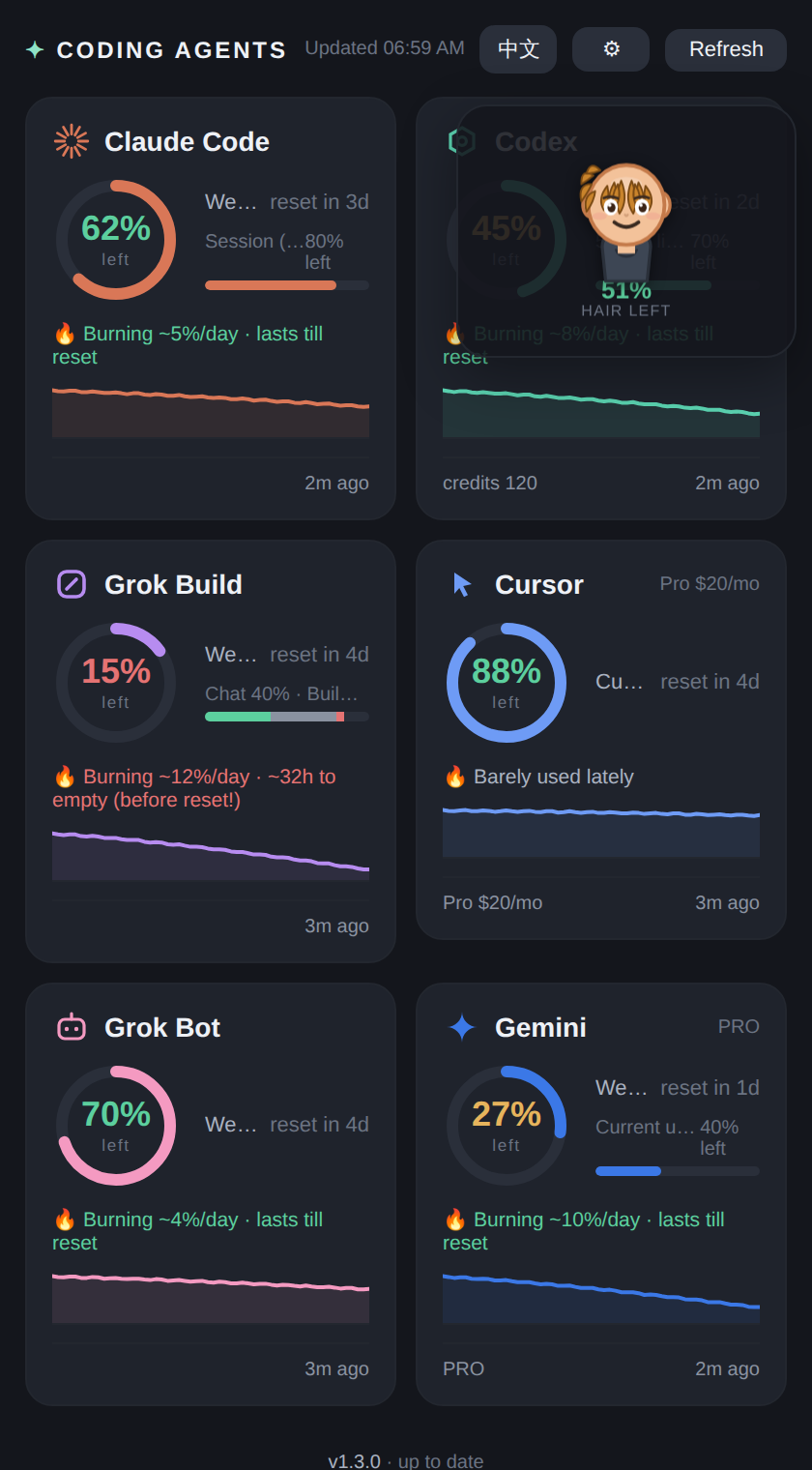
The real panel, with sample data.
Every AI coding tool hides its quota in a different place. This extension reads them all and puts the numbers where you can see them.
Weekly and short-term limits for all six agents, plus exactly when each one resets. Pick which agents to track in ⚙.
Once it has a few hours of data, it estimates how fast you're spending and warns when you'll run out before the next reset. Each card draws a sparkline.
Click the toolbar icon to open the side panel. Quotas stay visible while Refresh runs — no extra windows stacked on top.
Desktop notification when any tracked agent drops below 15%, and again below 5%. Turn it off in settings if you'd rather not.
On the interval you pick (default once an hour) it re-reads your usage pages in background tabs without stealing focus. Or hit Refresh for a fresh read.
No API keys, no account linking. It reads the numbers off pages you're already signed into and keeps everything in your browser's local storage.
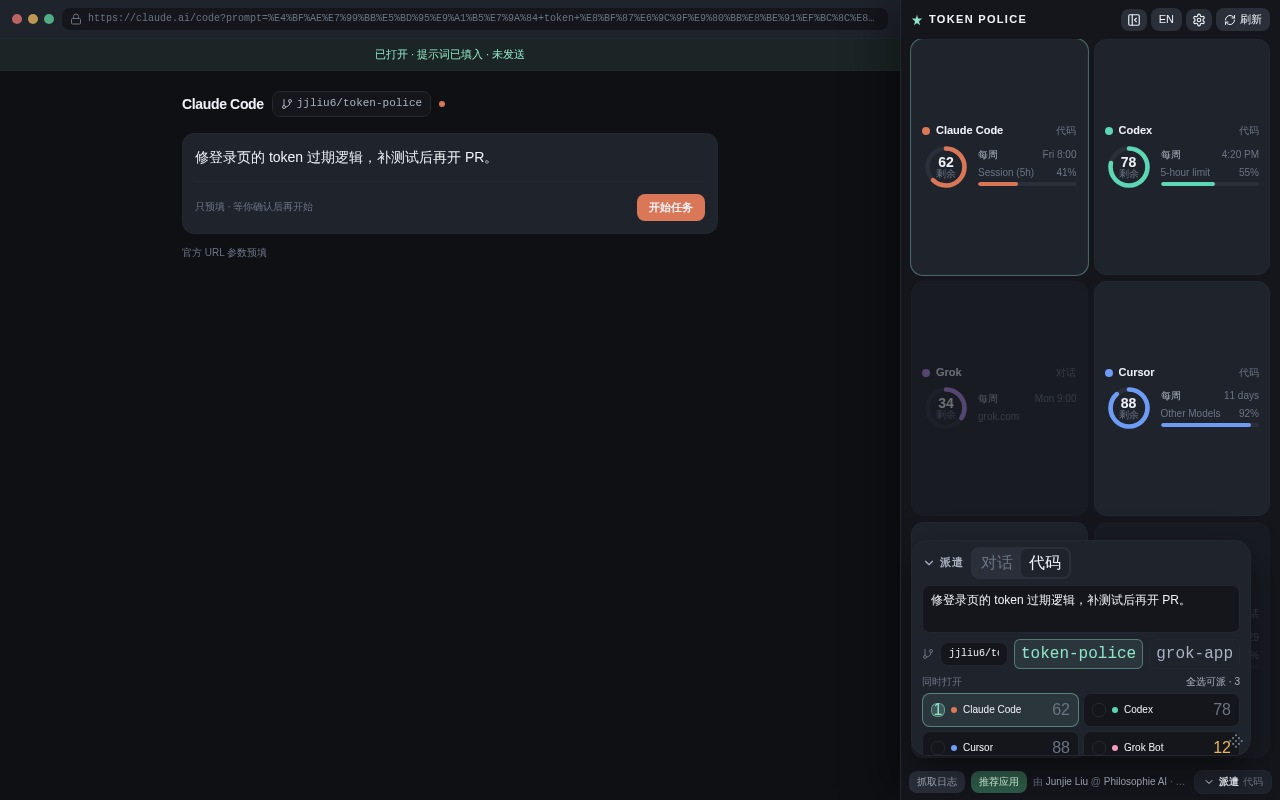
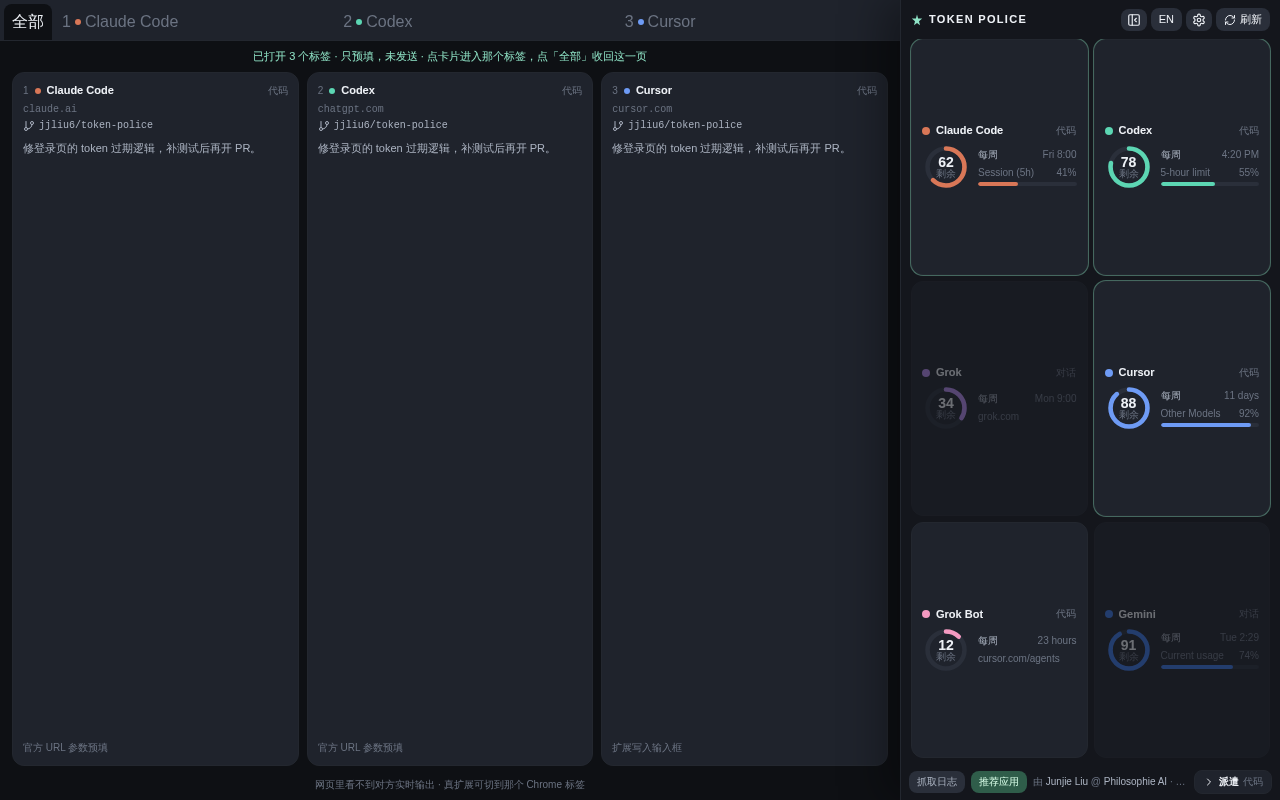
The Dispatch button in the footer opens a composer. Tick Chat or Code and they come up as real Chrome tabs with the prompt already filled in. You still hit Send yourself. Auto-send is optional — and it does spend quota.
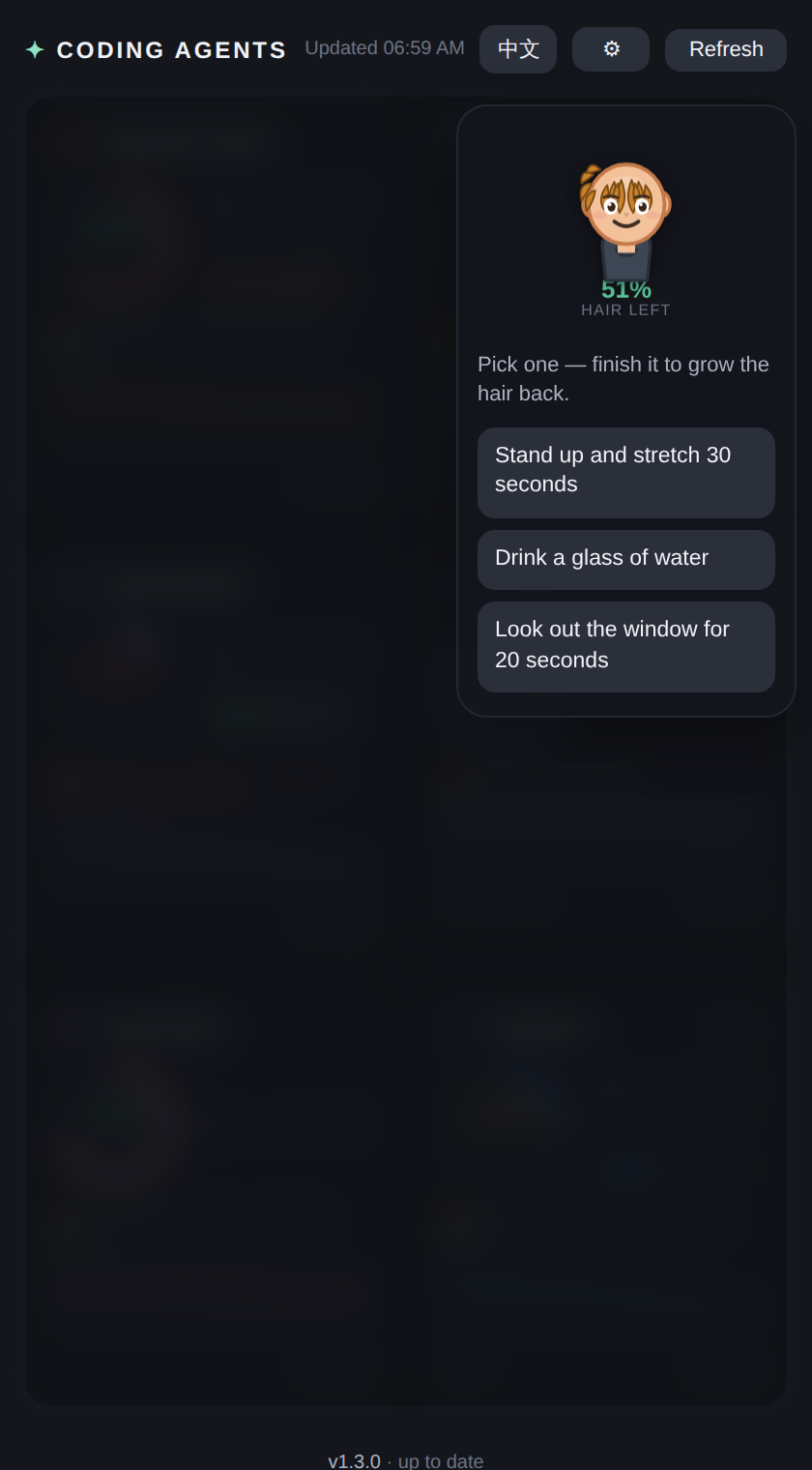
Quota isn't the only thing that runs out while you vibe-code. The panel comes with a small companion that keeps an eye on you as well.
The extension ships as a plain .zip. You unzip it once and tell Chrome where the folder is.
Use the Download button on this page. It is always the newest release.
Double-click on macOS, or right-click → Extract All… on Windows. You get a folder containing manifest.json. Keep it out of Downloads — Chrome loads the extension from this folder every time it starts.
chrome://extensions and turn on Developer modePaste the address into Chrome's address bar. The Developer mode toggle is in the top-right corner.
Select the unzipped folder (the one with manifest.json inside). The extension icon appears in the toolbar — pin it if you like.
The dashboard opens in Chrome's side panel. Press Refresh to fetch your numbers — a few tabs may flash open and close while it reads each usage page.
Steps 3 and 4, as they look in Chrome (loops every 12 s):
chrome://extensions. Your settings and history stay.chrome.storage.local.It's a small open-source side project that reads other products' pages, and store review for that kind of extension is slow and unpredictable. Shipping a .zip from GitHub means every fix reaches you the same day. You can inspect every file in the folder — it's plain JavaScript.
It only has permission for five domains (claude.ai, chatgpt.com, grok.com, cursor.com, gemini.google.com). It reads the usage numbers shown there. It cannot see other sites, and it makes no network requests apart from the optional daily version check.
Google Chrome, plus any Chromium-based browser with a side panel: Edge, Brave, Arc, Vivaldi. Firefox and Safari are not supported.
Almost always you're signed out of that product. Click the link on the card, sign in, then press Refresh. Some pages (Cursor, Grok) won't render in a background tab, so the automatic check keeps their last value — Refresh briefly brings them to the front for a guaranteed read.
Open ⚙ in the panel and untick it. Unticked agents are skipped by Refresh and hidden from the dashboard.
Yes. Open ⚙ in the panel and untick "Hair mascot". The break-time veil goes with it. The move reminder is a separate switch in the same menu, on by default.
Not by default. It opens real Chrome tabs and fills the composer — you confirm Send or Start task on each site. Turn on Auto-send and Chat will be submitted for you (that does spend quota); Code always stays fill-only. Grok Bot has no public web composer, so it stays on the quota cards.
Yes — grab the source zip of the main branch. It installs the same way, just with a few extra development files in the folder.
Download, unzip, load the folder. Two minutes from now you'll know exactly how much quota you have left.